

In every organization, the same problem appears: the information is there, but it is scattered. Someone is looking at a list of cases, someone else is checking reports, someone is counting tasks in their head, while management wants a quick overview without twenty clicks. Workspaces, or widgets, are an additional OWIS feature designed to solve exactly that: they provide a clear overview of what matters, all in one place.
This is not a feature that is turned on in the same way for everyone. Widgets are created upon request, based on how your organization already uses OWIS. The idea is simple: once you define what you want to see, OWIS can display it as a small panel that saves you time every single day.
What are workspaces, or widgets?
A workspace is a single screen, or a section of a screen, made up of smaller modules. Each module, or widget, displays one piece of information that matters to you. It can be a number, a list, a chart, or a shortcut to an action. Instead of navigating through multiple menus, you get the key information instantly.
In practice, this means that different teams can have different workspaces. Administration can monitor cases that are stalled, procurement can track what is waiting for approval, HR can have an overview of absences, and management can see a summary of overall activity and workload.
Why is this useful for an organization?
The real value of widgets is not that they look nice, but that they change team behavior. When the overview is clear, people react faster, fewer things are forgotten, and it becomes easier to agree on priorities.
Typical outcomes organizations look for include less manual tracking in Excel, fewer questions like “who is working on what,” faster detection of bottlenecks, and better control over deadlines and workload.
Examples from practice
Below are examples of workspaces that showcase different types of widgets. The goal is not to copy these exact screens, but to recognize the logic behind them and think about what would be most useful for your team.
Example 1: User activity and basic trends
This type of widget gives managers and administrators a quick answer to the question: is the system active, and how much is it being used? At a glance, you can see the number of active users in the last hour, the ratio of active to total users, and an hourly breakdown for the same day.
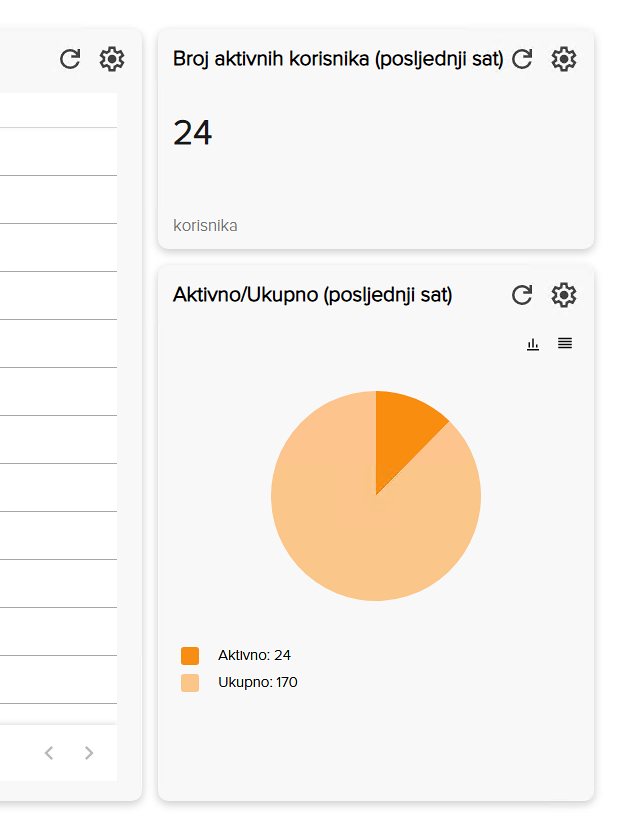
Figure 1. Example of a KPI and activity chart for the last hour.
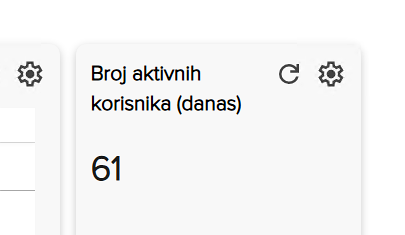
Figure 2. Example of a simple KPI widget showing the number of active users today.
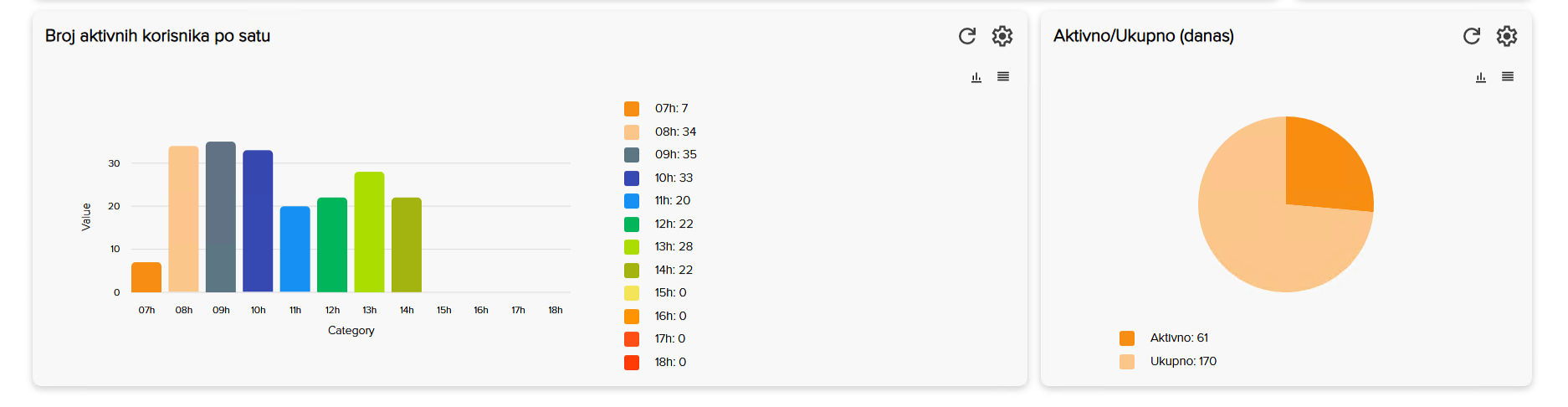
Figure 3. Example of a chart displaying the number of active users by hour and the ratio of active to total users today.
This type of workspace is also useful when you want to demonstrate usage patterns. For example, whether the highest workload occurs in the morning, whether there is a drop after a certain time, or whether a specific team uses the system only sporadically. These insights help with planning support, training, and workload distribution.
Example 2: Procurement and initiatives in one place
Procurement is a classic case where overview matters more than detail. The team needs answers to three questions: what is waiting for action, what is assigned to me, and what is the total volume in the system. Widgets solve this by turning those questions into three clear lists, accessible without having to navigate through additional modules.
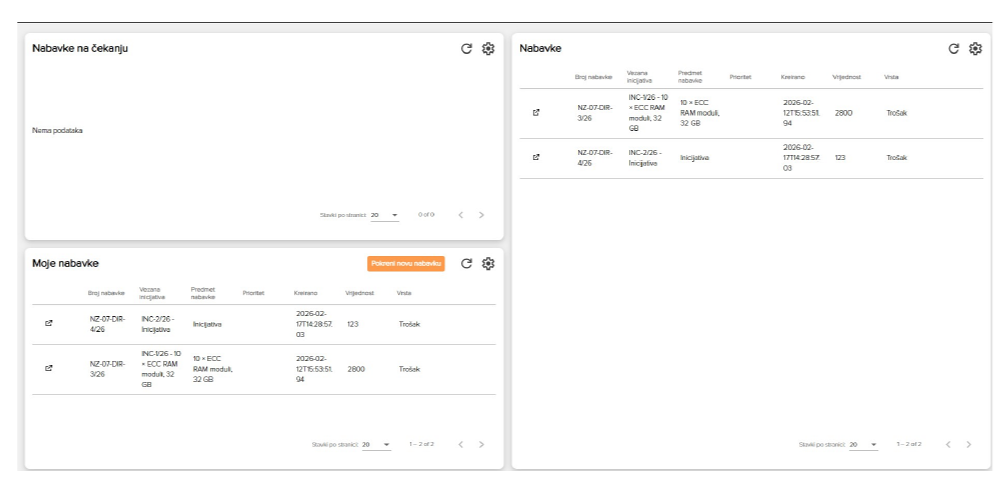
Figure 4. Example of a procurement workspace with lists for pending items, my items, and all procurements.
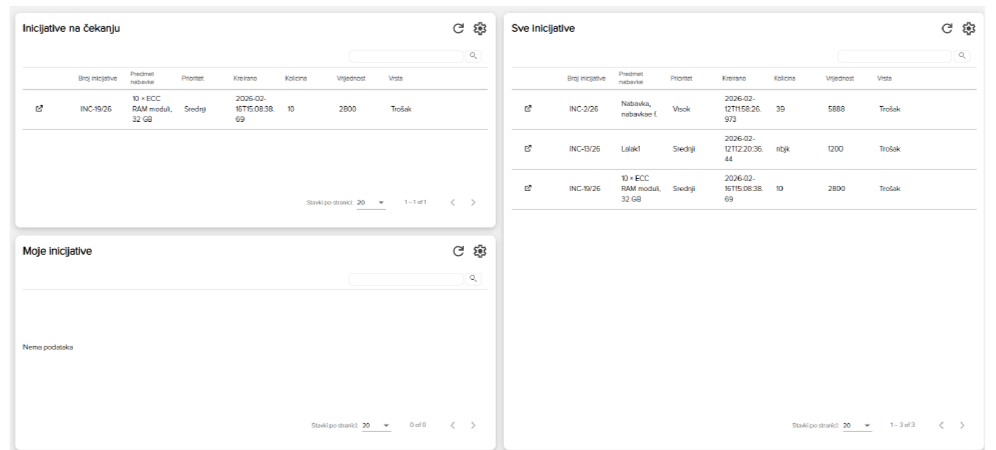
Figure 5. Example of an initiatives workspace using the same overview logic.
This type of workspace is most often used to make sure nothing gets overlooked. When work is managed through rows and statuses, the biggest risk is that something remains pending simply because no one noticed it. Widgets reduce that risk by making waiting items visible.
Example 3: Overview and generation of cover pages
In some organizations, it is important that specific documents or cover pages are generated daily and by case group. A widget can provide an overview of what has already been generated and when, along with a simple action to trigger the generation process.
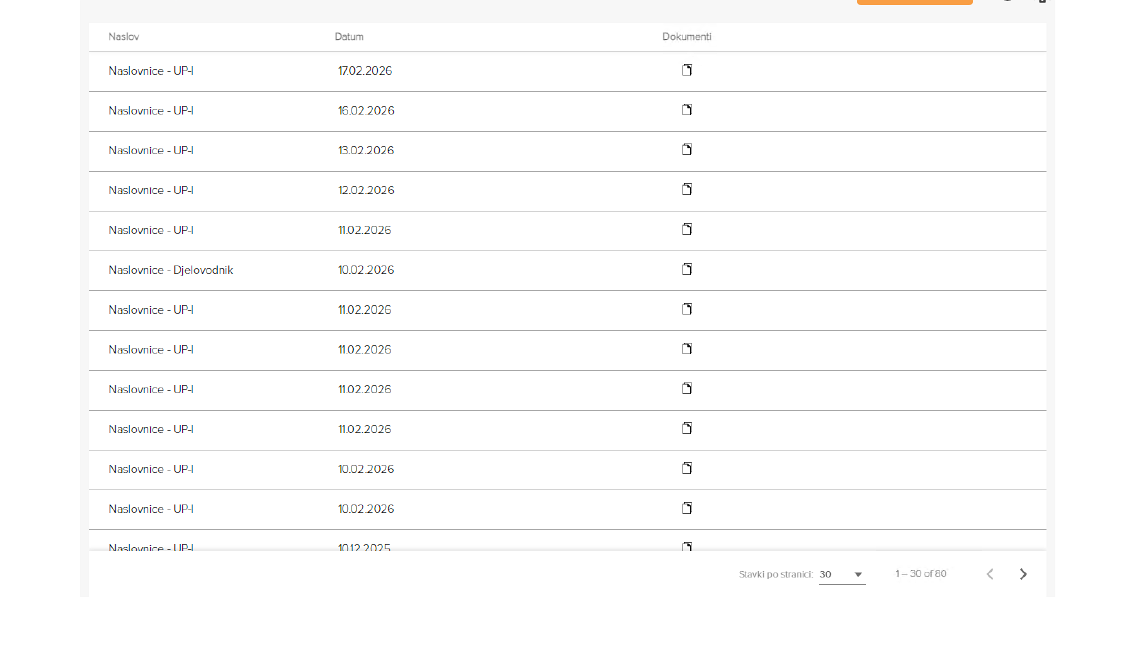
Figure 6. Example of a daily cover page list displayed as a widget within a workspace.
How to design your workspace
If you want your workspace to be truly useful, you do not start with design, but with the right question. In practice, this simple framework has proven to be the most effective:
Start by asking a question you want answered within five seconds. For example: what is waiting for my action today, or how many cases are currently delayed.
Choose the best way to display it. A number for a quick overview, a list for operational work, a chart to spot trends.
Define who it is for. One person, a team, or management. A widget always respects existing OWIS permissions.
Agree on filters and time frames. Today, the last hour, the past seven days, only my department, or only my assigned items.
Add a clear action where it makes sense. Open a case, start a new procurement, view details, or generate a document.
How are widgets set up in the OWIS system?
Workspaces are created upon request. Together, we define what you want to track, who it is intended for, and what the ideal overview should look like. The widget is then connected to the data that already exists in OWIS and integrated into your existing way of working.
Since this is an additional feature, your core processes remain untouched and the way OWIS functions does not change. You simply gain an extra layer of visibility on top of the existing system, tailored precisely to your organization’s needs.
Note: The examples shown in the images are illustrative. In real use, data visibility always follows user permissions.
Conclusion
Widgets are small, but highly practical. When designed well, they become the first screen people open in the morning, because they immediately see what needs to be done. If there is a part of your work that you currently track manually or through multiple steps, there is a good chance it can be turned into a simple workspace within OWIS.